
Provider Management
This guide covers how providers (clinical, non-clinical and administrative users) are added, viewed, edited, and managed in Mirah.
Note about users managed by EHR integration
If your organization's EHR is integrated with Mirah, providers are typically created and updated automatically when changes are made on the EHR side. Make changes in the EHR first and wait for the next sync (most organizations sync twice a day). Editing a provider directly in Mirah may be overwritten on the next sync from the EHR. Manual editing is appropriate when there's no integration or for fields the integration doesn't manage.
Finding providers
MBC Platform
Open Manage Providers from your organization name in the top-right menu of the dashboard.
CoCM Platform
Open Manage Providers under the Configuration menu item on the left of the dashboard.
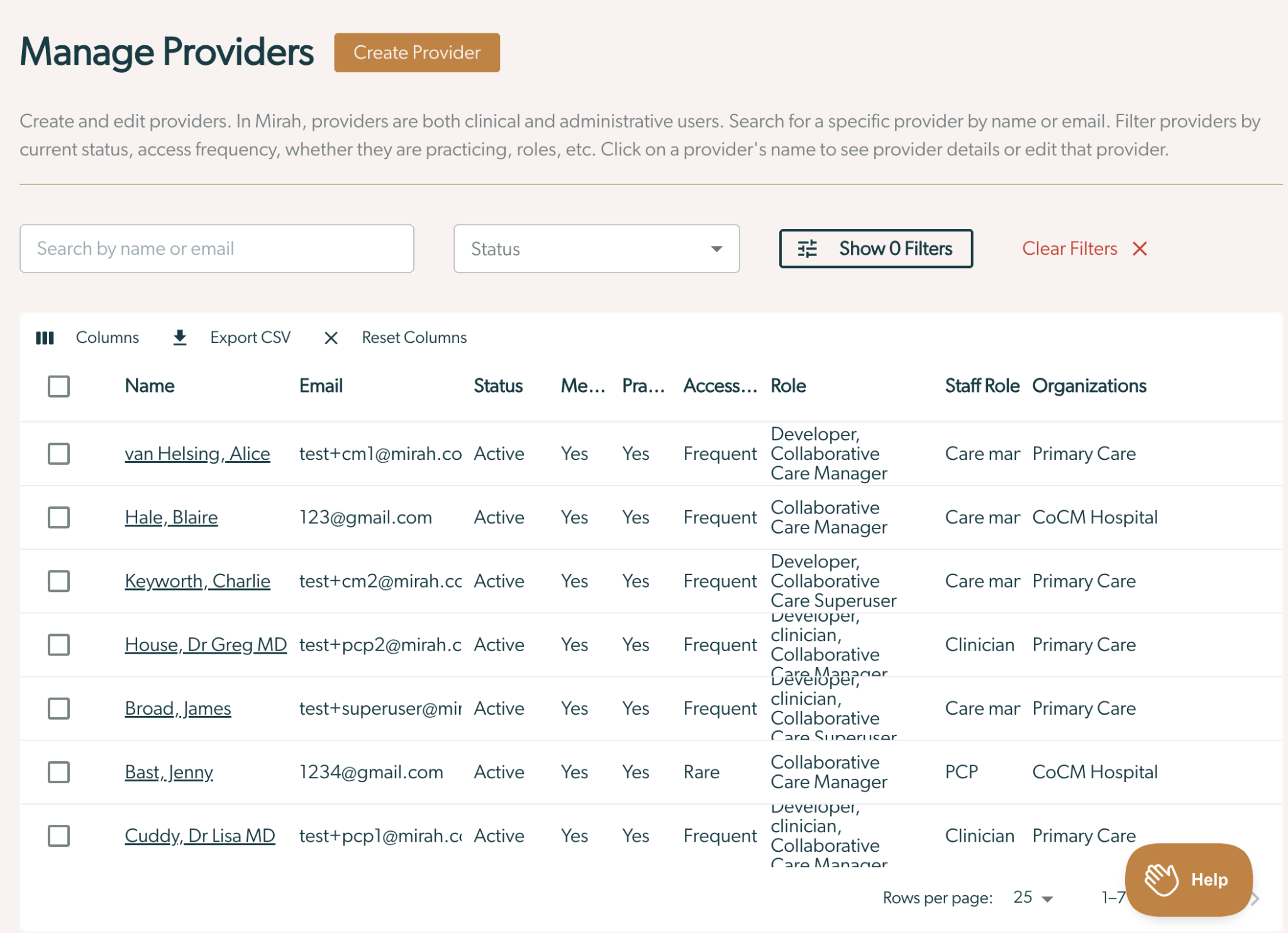
You'll land on the provider list, which shows every provider in the institute, ordered by last name. From there:
- Click on the provider’s name to view a provider’s details.
- Search for a provider by name.
- Filter by provider status or other filter options by clicking the Show Filters button.
Adding a provider
From the provider list, click Create Provider. Fill in the required fields and click Create Provider at the bottom of the form.
At minimum you must fill out the following information:
- First name and last name
- One or more roles - without a role, the provider can't see any data.
- Staff role - clinical or non-clinical title (e.g., "Therapist", "Front Desk", "Primary Care Physician")
- Access frequency - see Access Frequency below
- Email subscriptions - see Email Subscriptions below
Once a provider is created, they will receive a welcome email with a link to set their password.
Non-clinical staff
Non-clinical providers (administrators, leadership, front-desk staff) are usually synced from the EHR but can also be added manually using the same flow — just make sure to pick the appropriate non-clinical staff role.
The Provider Details Page
The details page is the read-only view for a single provider. The top of the page shows the provider's name. Below that, a table lists their configured values:
- Name and contact info
- Active roles
- Staff role and access frequency
- Email subscriptions (or -- if none)
- Last login and account status
- Organization(s)
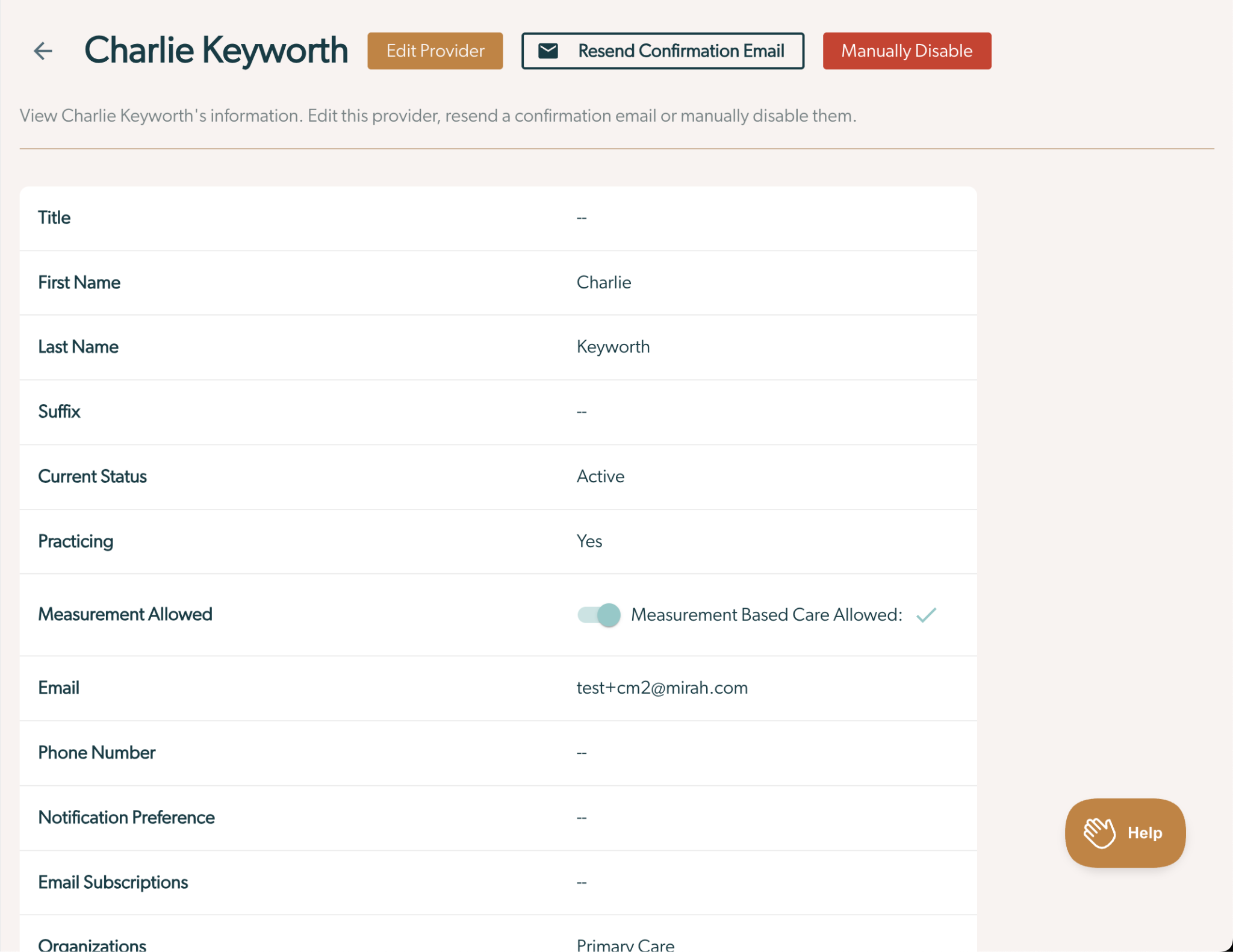
Actions available on this page depend on the provider's current state (see Provider Lifecycle):
- Edit - open the edit form
- Send / Resend Welcome Email - send the password-setup email
- Disable Provider - manually disable an active provider
- Re-enable Provider - re-enable a disabled provider
Status messages
Here are the most common statuses that appear on the provider details page:
| Status | What it means |
|---|---|
| Active | The provider has logged in and is regularly using Mirah. |
| Awaiting first login | The provider has been activated but has never logged in. They can't complete clinician assessments or have measurements assigned until their first login. |
| Disabled due to inactivity | The provider was auto-disabled after 90 days without a login (see Security policies). |
| Disabled | Manually disabled. They can't log in, be assigned to patients, or have sessions created for their appointments. |
Editing a provider
From the details page, click Edit to open the edit form. The form is the same format as when creating a provider so see Adding a Provider to understand the fields. Click Save Changes at the bottom of the form when editing the provider’s details is finished.
Security Roles
Roles control what a provider can see and do. A provider can have multiple roles. If a provider has multiple roles, they will have access to everything that each individual role includes.; access is the union. See Security Role Reference for the catalog.
Staff Roles
The staff role is the provider's clinical/operational title (e.g., "Therapist", "Care Manager", "Primary Care Physician"). It is distinct from security roles and is mostly used as a visual reminder. Some platform behavior is specific to particular staff roles (such as PCPs in CoCM).
Access frequency
Access frequency tells Mirah how often the provider is expected to log in. It affects whether a provider will be automatically disabled for inactivity and whether they receive a welcome email when their account is created.
| Frequency | Behavior |
|---|---|
| Standard frequencies (Daily, Weekly, Monthly) | Receive welcome email & are disabled after 90 days of inactivity. |
| Rare | Will not receive welcome email and will not be disabled for inactivity. Useful for providers who are listed on care teams but do not actively use Mirah. |
Email subscriptions
Check the boxes for any email notifications this provider should receive. The list of available subscriptions is set up by your organization and may include:
- Weekly Adherence Email — summary of assessment adherence
- Assessment Complete Alerts — notification in Mirah sent when a patient completes an assessment
Subscriptions can also be managed by the provider themselves from their own profile (Edit Notification Preferences).
Provider lifecycle
A provider moves through three primary states. Once they are active, the only state they can be moved to is disabled. Please note, there are multiple disabled statuses. See Disabled.
Created → Awaiting first login → Active ⇄ Disabled
Awaiting first login
A newly created provider is marked Awaiting first login until they sign in for the first time using the link in the welcome email. During this window they cannot complete clinician assessments and measurements assigned to them will not be administered.
If the welcome email did not arrive in the provider’s inbox, open the provider's details page and click Send Welcome Email (or Resend Welcome Email). If neither button is visible, click Re-enable Provider instead — that also re-triggers the welcome email.
Welcome email not arriving?
Sometimes Mirah accounts are created before the email address is configured for the provider. Confirm the email field is populated and correct, then try resending. You may need to wait up to 24 hours after the email is set before a resend succeeds. If the issue persists, contact support@mirah.com.
Active
The provider can log in, complete assessments, and automatically send assessments.
Disabled
A provider can be disabled in two ways:
- Disabled (Manual) — an administrator clicks Disable Provider.
- Disabled (Inactivity) — the provider hasn't logged in for 90 days.
- Disabled (EHR) - the provider was disabled via EHR integration.
The provider can log in, complete assessments, or automatically send assessments.
Re-enabling
Open the disabled provider's details page and click Re-enable Provider. They become active immediately.
Auto-disable is checked nightly
If a re-enabled provider doesn't log in before the next nightly security check runs, they'll be disabled again immediately. If the provider has forgotten their password, point them at the password reset flow rather than relying on re-enable alone. Providers need to log in immediately after being re-enabled.
Security policies
Two automatic policies protect inactive accounts:
- Idle session logout. Providers are signed out after 15 minutes of inactivity in the browser. This time can be increased by custom configuration. Reach out to support@mirah.com if interested in adjusting this.
- Inactivity auto-disable. Providers who haven't logged in for 90 days are automatically disabled. The check runs nightly between 6 PM and 8 PM Eastern Time. Providers with the Rare access frequency are exempt from the auto-disable check.
Security Role Reference
MBC platform security roles
MBC roles are only available when the institute is configured for the MBC product.
| Role | Patient access | Functionality | Analytics |
|---|---|---|---|
| Superuser | All patients | All — clinical actions, scheduling, user management, configuration, data export | Basic, Outcomes, Executive |
| Supervisor | All patients | Clinical actions | Basic & Outcomes |
| Clinician | All patients | Clinical actions | Basic |
| Sub Unit Supervisor | Patients in their unit(s) and sub-units | Clinical actions | Basic, Outcomes, Executive (for their units) |
| Sub Unit Clinician | Patients in their unit(s) and sub-units | Clinical actions | Basic |
| Independent Clinician | Only patients on whose care team they're listed | Clinical actions | Basic (their patients only) |
| Executive | All patients (reporting only) | Reporting only | Outcomes & Executive |
| Front Desk | All patients | Clinical actions, scheduling, check-in | Basic |
| Case Manager | All patients | Clinical data access (read), no scheduling, no patient creation | Basic |
| Billing Coordinator | All patients (demographics only) | Edit insurance information | None |
| User Administrator | — | Create and modify users for the institute | None |
CoCM platform security roles
CoCM roles are only available when the institute is configured for the Collaborative Care product.
| Role | Functionality | Analytics |
|---|---|---|
| Collaborative Care Superuser | All care manager workflows, all user administration | Institute-wide and personal performance |
| Collaborative Care Manager | All care manager workflows | Personal performance only |
| Collaborative Care Supervisor | All care manager workflows | Personal and organization performance |
CoCM Primary Care Physicians
Primary Care Physicians (PCPs) in CoCM are a special case. They're typically listed on care teams so that care managers can route work to them, but they are not expected to log into Mirah themselves. When Creating a Provider, use the following options:
- Staff role = Primary Care Physician
- Access frequency = Rare
The Rare frequency suppresses the welcome email and exempts the PCP from the 90-day auto-disable, so they can be assigned patients indefinitely without ever signing in.
Getting help
If you run into issues that are not covered here — such as welcome emails not arriving after 24 hours, missing roles, providers unexpectedly being disabled, or anything else— email support@mirah.com.