
Feature Guide - How to Use Docshound
At Mirah, we have switched our knowledge base from Helpscout to Docshound. Docshound is an AI-powered customer support tool that is designed to give customers a more personalized and tailored experience. Now, there is a chatbot feature that is available on your institutes site and on our support documentation guides. With this chatbot, users can prompt personalized questions from our knowledge base and receive a tailored, holistic response. This article walks user's through the functionality of the chatbot and how to submit tickets.
To access our MBC knowledge base, please refer to this link: mbc.help.mirah.com.
To access our CoCM knowledge base, please refer to this link: mbc.help.mirah.com.
1). Locate the Docshound beacon on the right side of your institutes page; this button will be available from every location in your site.

2). Click on this button. The chatbot will now appear.

3). Users will now have the ability to input any questions regarding Mirah into the chatbot. Using our knowledge base, the beacon will pull information from our documentation to clearly answer your question. Please type in your question and select "Send."

Please note that the chatbot can take up to 15 seconds to formulate a detailed response. If the beacon takes longer than the allotted time, the chatbot will prompt to "Raise a Ticket" for you and send it directly to our support.
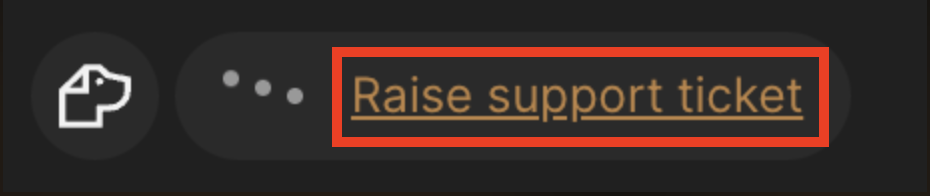
- Select "Raise support ticket." Note that it could take up to 10 seconds to officially submit the ticket and might ask follow-up questions.
-
5). Below is an example of a response. Please see the article(s) pulled from the chatbot. Users are directed to this documentation to view more information regarding the topic.

6). If your question is not fully answered by the given response, you can specify what information you need by providing more details to the chatbot. Alternatively, you can prompt the chatbot to create a support ticket for you. The beacon will take the information in the conversation and submit a ticket directly to our Customer Support team.
7). Please note that there is a "Sweep" feature in the top left corner of the chatbot. This feature enables users to "Cancel" out their past conversation.

8). If you have any questions, please do not hesitate to reach out to our support team at support@mirah.com.
Using the Docshound Knowledge Base
1). Use the following link to visit our knowledge base:
- MBC = mbc.help.mirah.com.
- CoCM = mbc.help.mirah.com.
2). Once here, you have the option to either go to our support articles (1) or continue with the chatbot (2).

- If you go to the document page, use the navigation menu on the left to find articles related to your question.

- Alternatively, if you continue with the chatbot, simply ask your question and select the "send" arrow. A detailed answer will be prompted, and the chatbot will refer you to articles if you wish to seek further information.
